Upgrading to an NVMe SSD for Office Computers: 5-10 Times Faster Speed
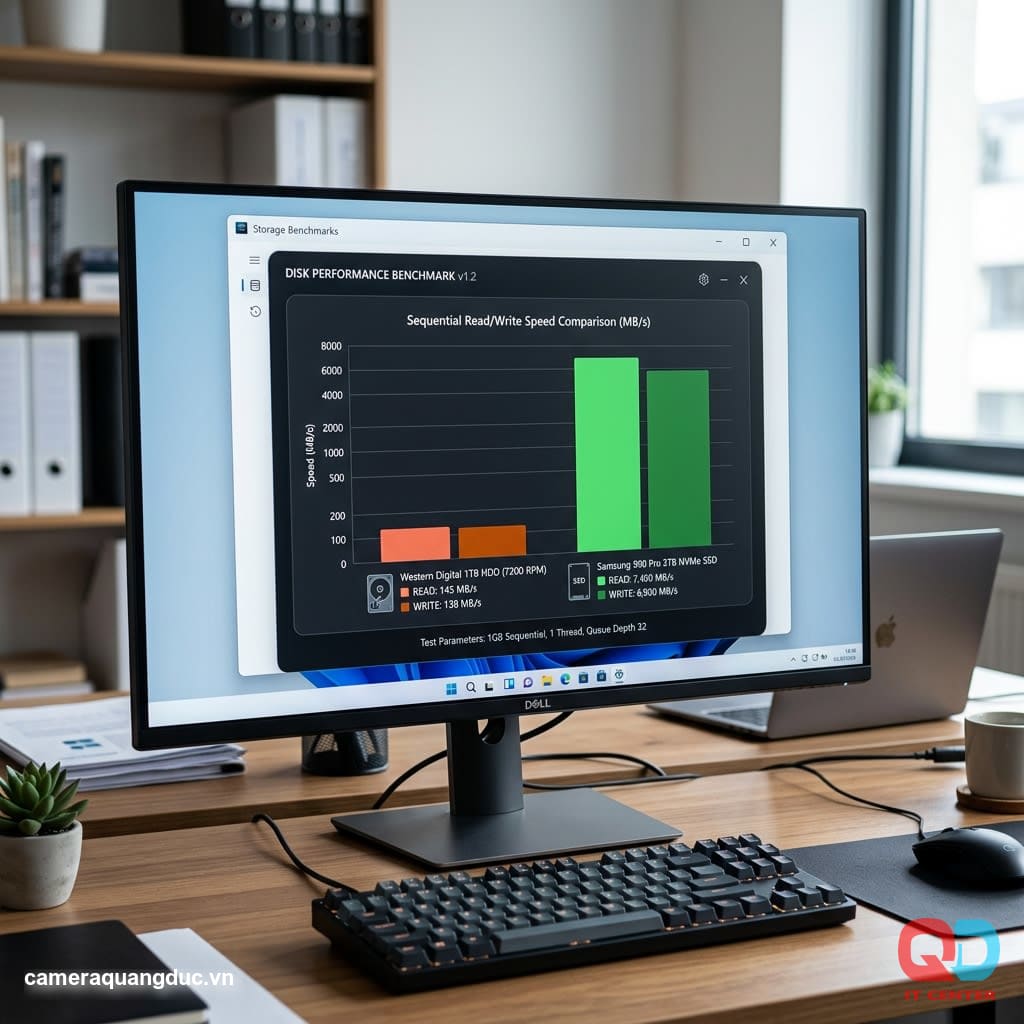
It's not uncommon for office computers to take 3–5 minutes to boot up, or for large Excel files to take tens of seconds to open—especially with machines that have been using mechanical hard drives (HDDs) for 3–5 years or more. In fact, measurements show that upgrading from an HDD to an NVMe SSD can improve boot speeds and application opening times by 5 to 10 times, without needing to replace the entire computer.
This article provides detailed instructions on how to choose a suitable NVMe SSD, check compatibility with your old motherboard, and a safe data cloning process to avoid losing existing data.
Speed Comparison: HDD, SATA SSD, and NVMe
drive type
Sequential read/write speed
Estimated Windows startup time
HDD (mechanical hard drive)
~150 MB/s
60–90 seconds
SATA SSD
~550 MB/s
15–20 seconds
NVMe SSD Gen3
~3,500 MB/s
8–12 seconds
NVMe SSD Gen4
~7,000 MB/s
6–10 seconds
The difference isn't just in benchmark numbers; it's clearly evident in real-world experience: opening accounting software, processing data-intensive Excel files, or switching between multiple applications simultaneously are all significantly smoother when switching from HDD to NVMe.
Why are NVMe SSDs so much faster than SATA SSDs?
SATA SSDs are still limited by the SATA III protocol (theoretically a maximum of 600 MB/s), while NVMe communicates directly via the PCIe slot with significantly higher bandwidth. This is why, even though they are both SSDs, the speed difference between SATA SSDs and NVMe is still substantial — especially for tasks involving reading/writing large files or multiple small files simultaneously.
Check motherboard compatibility before buying.
This is the most important step, avoiding the situation of buying an expensive NVMe Gen4 SSD but having a motherboard that only supports Gen3 — both a waste of money and not getting the full speed potential.
Quick Check Step
- Check the M.2 slot: The motherboard needs to have a standard M.2 2280 slot (the most common size) that supports the PCIe protocol (not just SATA M.2).
- Check PCIe generation: Use software like CPU-Z or consult your motherboard manual to find out if the M.2 slot supports PCIe Gen3 or Gen4.
- Check your BIOS: Some older motherboards (pre-2017) require a BIOS update to recognize booting from NVMe.
Note for older office computers: Many motherboards manufactured before 2016 do not have M.2 slots at all. In this case, you will need to use a PCIe to M.2 adapter, or consider upgrading to a SATA SSD instead of NVMe.
Checklist before buying an NVMe SSD:
- Confirm that the motherboard has an M.2 2280 slot that supports PCIe.
- Check the PCIe generation (Gen3/Gen4) to choose the corresponding SSD, avoiding purchasing one with excessive speed.
- Update your BIOS to the latest version if your motherboard is older.
- Check your existing SSD capacity to choose a suitable new NVMe SSD.
- Prepare cloning software and a temporary external hard drive (if needed).
Secure Data Cloning Process — No Windows Reinstallation Required
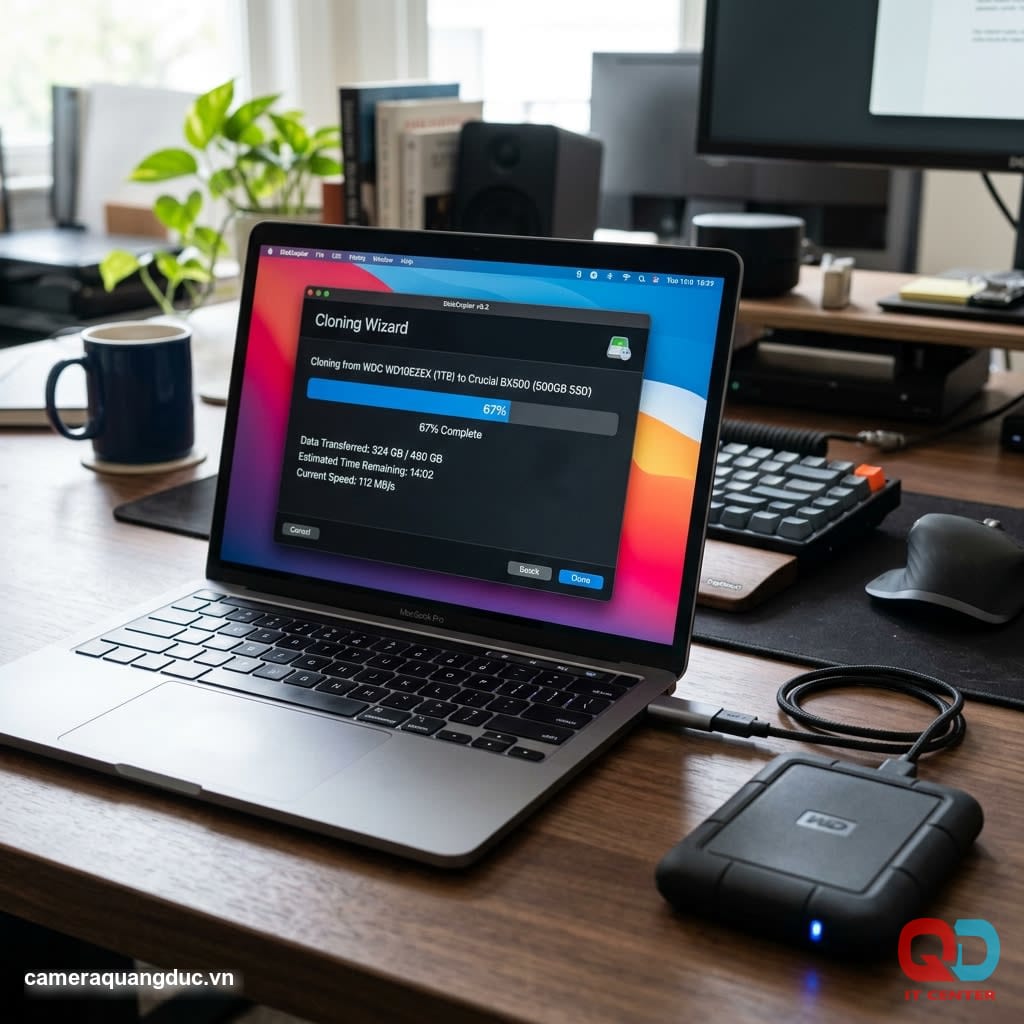
Many people are hesitant to upgrade to an SSD because they worry about having to reinstall the entire operating system and software. In reality, the hard drive cloning process allows you to copy the operating system, software, and data to the new drive in just one step.
Steps to follow
- Back up important data to an external hard drive or cloud storage before performing any operations (as a precaution).
- Install cloning software such as Macrium Reflect (free for personal use) or the software included with the SSD (Samsung Data Migration, Kingston Acronis).
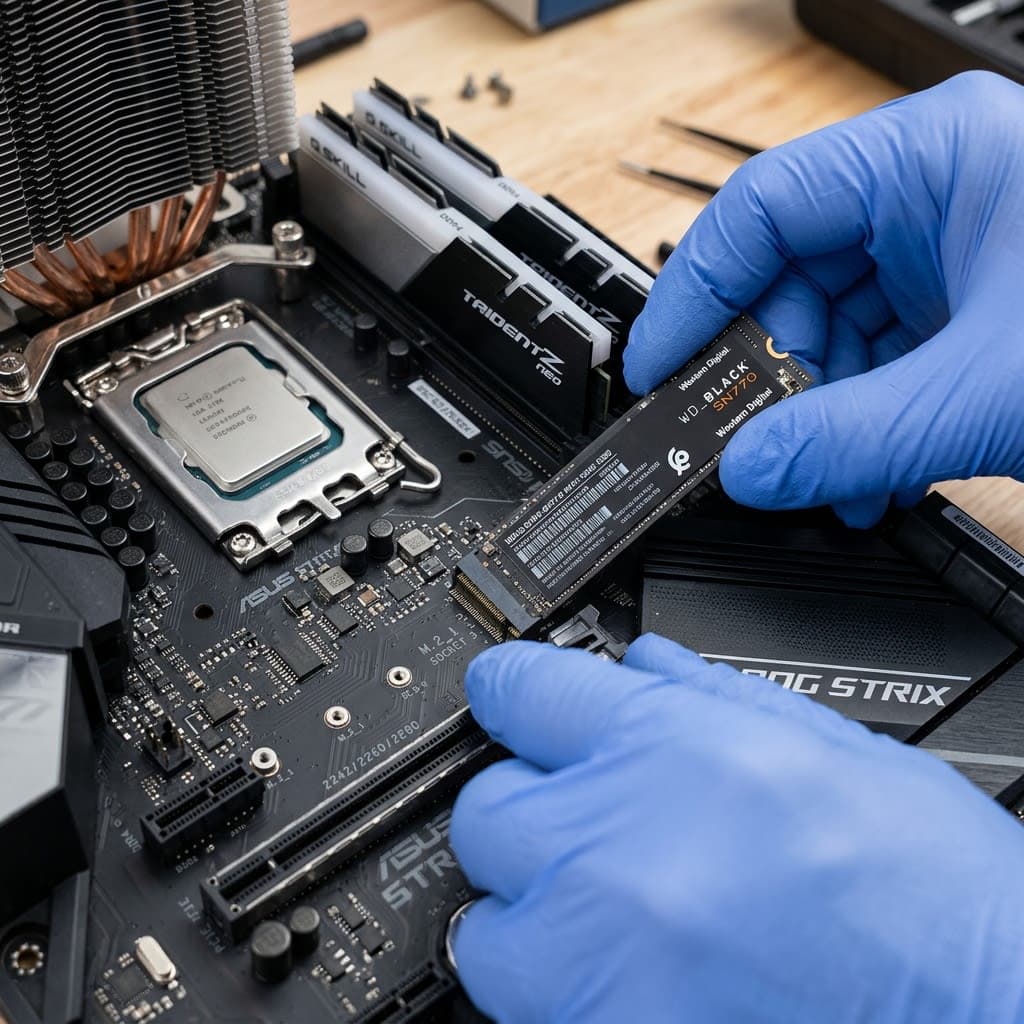
- Connect the new NVMe SSD via an empty M.2 slot or a temporary USB-to-M.2 adapter.
- Select the source and destination drives in the software, then clone the entire partition.
- Turn off the computer, install the NVMe SSD into the correct main slot , remove the old drive or use it as a secondary storage drive.
- Check the BIOS boot order to ensure the computer boots from the new NVMe SSD.
- Start and check all applications and data to ensure they are functioning normally.
Notes During the Migration Process
- Do not turn off the power or disconnect while cloning is running — this may cause data corruption.
- If the old drive has a larger capacity than the new one, you need to shrink the partition before cloning.
- Only after the cloning process is successful and stable should you delete the data on the old drive.
Choose the Right NVMe SSD Brand
Product
Reading speed
Fit
Samsung 980 Pro
Up to 7,000 MB/s (Gen4)
High-performance computers for processing large amounts of data.
Kingston KC3000
Up to 7,000 MB/s (Gen4)
Balancing price/performance for businesses
WD Black SN770
Up to 5,150 MB/s (Gen4)
Standard, cost-effective office space.
For typical office computers (word processing, accounting, email), 256–512GB NVMe Gen3 SSDs are sufficient without needing to invest in the fastest Gen4 models — saving significant costs while still providing a noticeable performance improvement over older HDDs.
Quang Duc's NVMe SSD Upgrade Service for Businesses
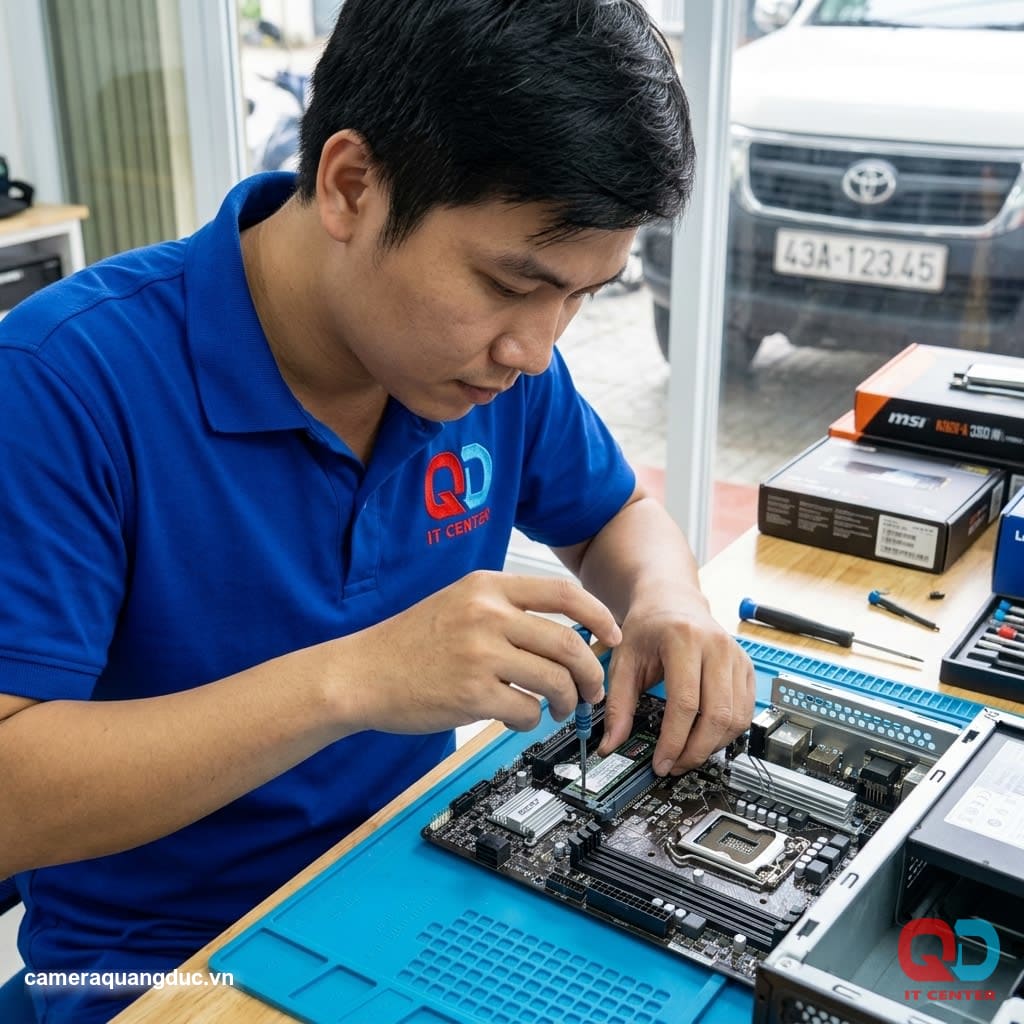
Quang Duc Electronics and Telecommunications Co., Ltd. provides comprehensive office computer hardware upgrade services:
- Conduct a motherboard compatibility survey and test before recommending a product.
- We offer genuine Samsung, Kingston, and WD NVMe SSDs at competitive prices.
- Perform professional data cloning, ensuring no loss of existing data or software.
- Mass upgrade for businesses with multiple office computers running simultaneously.
- Long-term warranty and technical support after upgrade.
With extensive experience in upgrading hardware for numerous businesses, Quang Duc is committed to a safe, fast process that minimizes disruption to employee workflow.
Conclude
Upgrading to NVMe SSDs is one of the most effective investment solutions for improving work performance without replacing the entire computer system. With reasonable costs and a secure data cloning process, businesses can "revive" a large number of old office computers, significantly increasing employee productivity.
If your business has many slow computers that need upgrading, contact Quang Duc today for a survey and consultation on SSD upgrade solutions that fit your budget.
Hotline: 0903 306 126 (Mr.Vũ Trần) | Website: cameraquangduc.vn